If you are planning to Buy or Sell any land or property, then you must obtain land record from Anyror Gujarat 7/12 online portal. This land record contains full details about Owner Information (માલિકીની માહિતી), Property Information (જમીનની માહિતી), Boja (બોજા), and Other Rights Information.
What is AnyRoR?
Welcome to AnyRoR @ Anywhere (iORA) – Land Records (જમીન રેકોર્ડ) of Gujarat State. Verify 7/12 Utara (સાતબારા ઉતારા), Search Property, Urban & Rural Area Land Records (RoR) Details Online.
This is a full land record portal of Bhulekh (ભૂલેખ) Gujarat state managed by the Revenue Department (મહેસૂલ વિભાગ) of Gujarat. This portal e-Dhara provides online satbara (સાતબારા) or land records details to the citizens.
How do Land Records Help us
- To Verify the Owner’s Name (માલિકનું નામ) and Property Details
- To Secure a Loan from a Bank
- To Prevent Property Fraud – Verify the Real Owner’s Name, Exact Area, and Type of Land. Verify if the property is on lease or has any Loan and Dispute (વિવાદ)
Types of Land Records
The following 4 are primary land records — there are many other land records available on the AnyRoR portal
| Form | Details | |
|---|---|---|
| VF6 | Village Form 6 (ગામ ફોર્મ 6) | Entry Details — are those Changes that occur in Land Records |
| VF7 | Village Form 7 (ગામ ફોર્મ 7) | 7/12 Survey Number / Khasra Number (ખસરા નંબર) Details |
| VF8 A | Village Form 8A (ગામ ફોર્મ 8A) | Khata Details (ખાતા માહિતી) |
| 135-D | 135-D Notice for Mutation (બદલીની નોટિસ) | Talathi (તલાટી) Issues a Notice and Requests for Objection on Changes in Land Records |
How to Verify 7/12 or AnyRoR Gujarat Land Records?
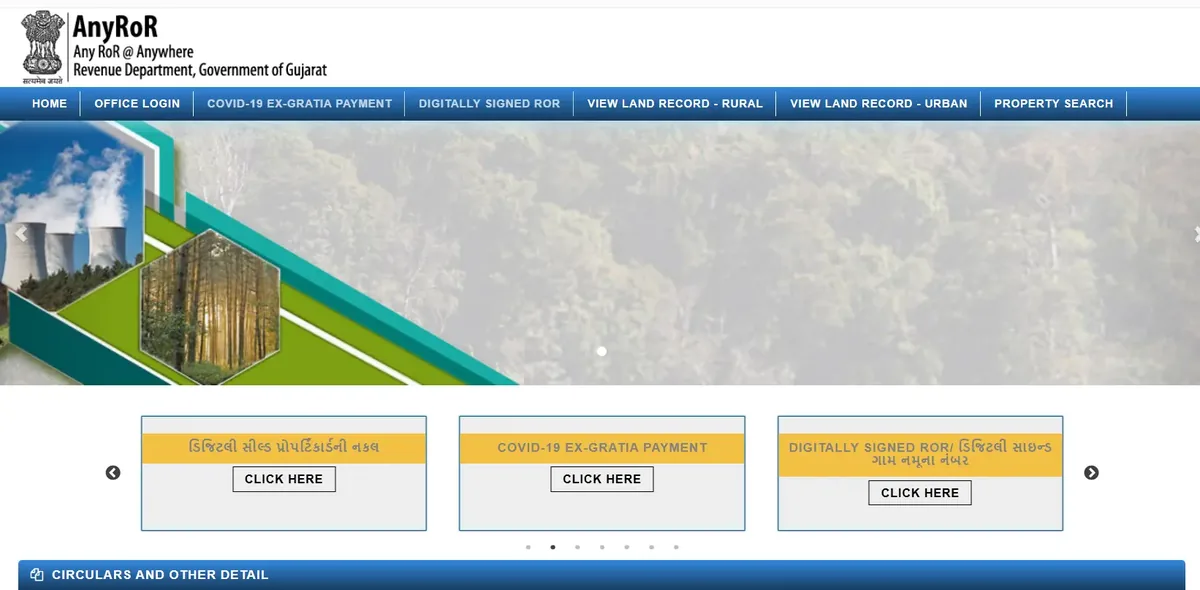
Visit Official Portal (સત્તાવાર પોર્ટલ પર જાઓ) –
Initially, you need to visit the official Anyror 7/12 utara online portal of Anyror @ Anywhere Gujarat this portal provides any ror 7/12 utara gujarat (સાતબારા ઉતારા ગુજરાત) online and other land records details online to the citizens. Let’s understand how to locate 7/12 utara online.
Select Land Options (જમીન વિકલ્પો પસંદ કરો) –
You will find 3 options on your screen select the correct option according to your land location and land record type that you require.

DOWNLOAD LAND RECORD – RURAL
Types of Anyror Rural Land Records (ગ્રામીણ જમીન રેકોર્ડના પ્રકારો)
The following land records are available in Rural Land Records
- Old Scanned VF-6 Entry Details (જૂની VF-6 દાખલ માહિતી)
- Old Scanned VF-7/12 Details
- VF-6 Entry Details (દાખલ માહિતી)
- VF-7 Survey Number Details (સર્વે નંબર માહિતી)
- VF-8a Khata Details (ખાતા માહિતી)
- 135- Notice for Mutation (બદલીની નોટિસ)
- Entry List by Month-Year
- New Survey No from Old for Modified Village
- Integrated Survey No Details
- Revenue Case Details (મહેસૂલી કેસ માહિતી)
- Locate Khata by Owner’s Name (માલિકના નામથી ખાતા શોધો)
Navigate to Homepage > Download Land Record – Rural

STEP 1 — Enter Rural Land Details (ગ્રામીણ જમીનની માહિતી ભરો)
Open your browser and go to the official AnyRoR portal: anyror.gujarat.gov.in . On the homepage, click View Land Record – Rural (ગ્રામ્ય).
Now select the required details including District (જિલ્લો), Taluka (તાલુકો), Village (ગામ), and Survey / Block Number where your land is located.
After entering all the details, solve the Captcha (કેપ્ચા) and click on the Get Record Detail button to view your land record.
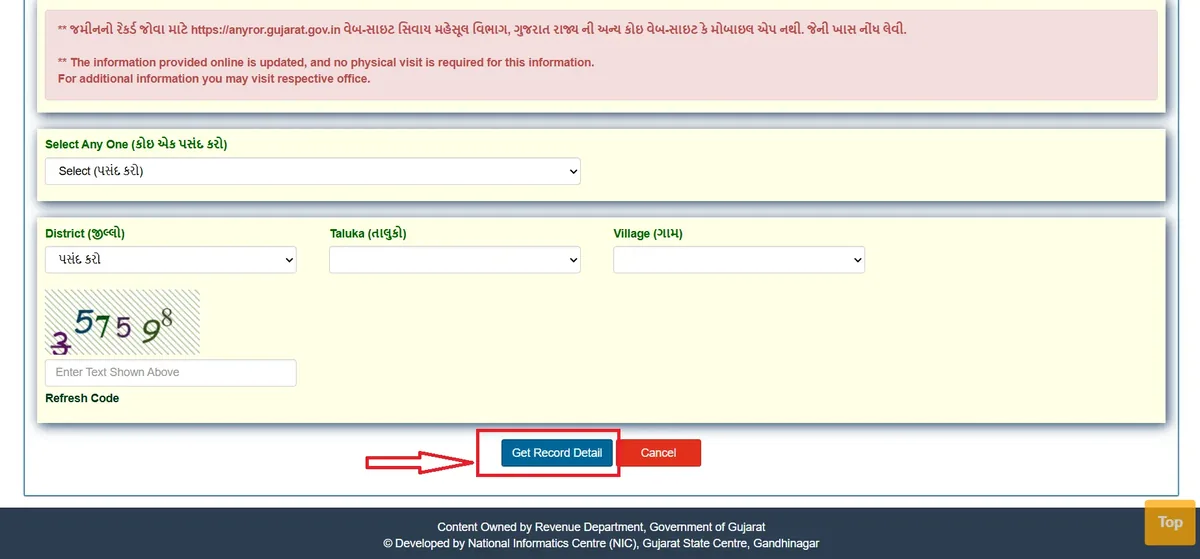
STEP 2 — Access Rural Land Record Details
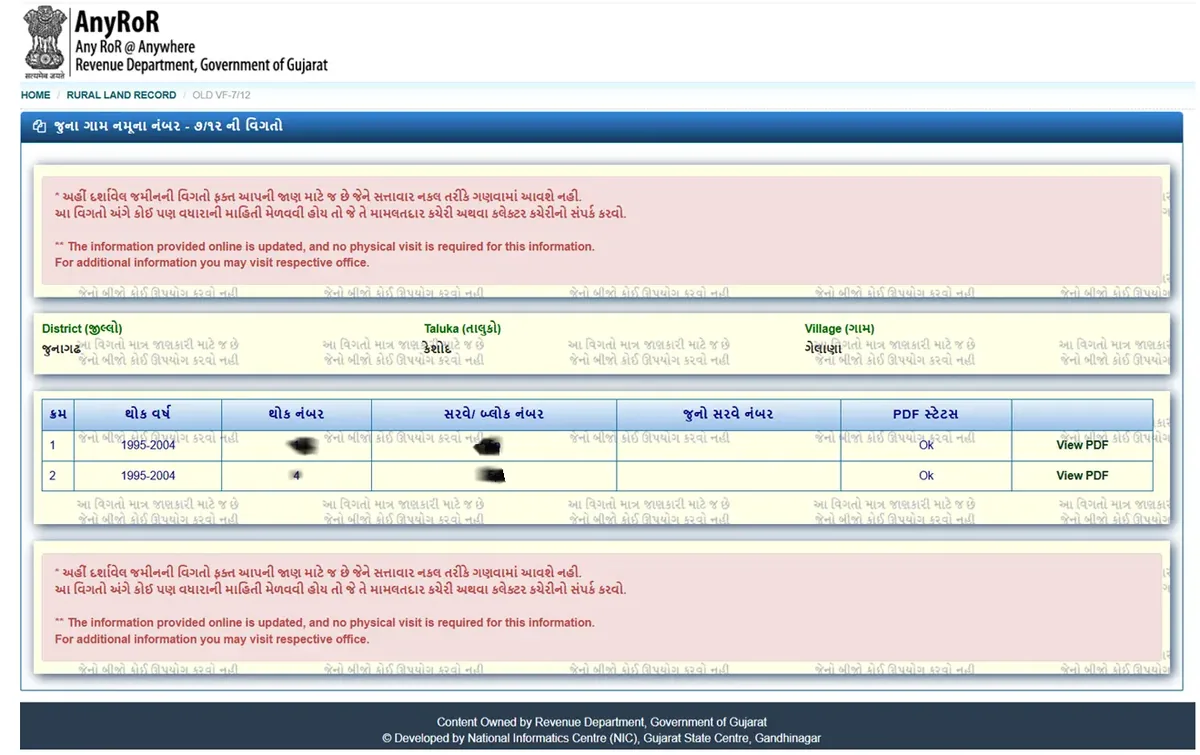
Consequently, you will see land record details appear on your screen. Now you can verify all the details such as the Owner Details (માલિકીની માહિતી), Property Details, Boja (બોજા), and Other Rights Details if you select VF7.
You will receive different details based on which land record type you have selected.
Want complete step-by-step details with screenshots, required documents, and expert tips?
ACCESS LAND RECORD – URBAN (શહેરી જમીનનો રેકર્ડ)
Types of Anyror Urban Land Records (શહેરી જમીન રેકોર્ડના પ્રકારો)
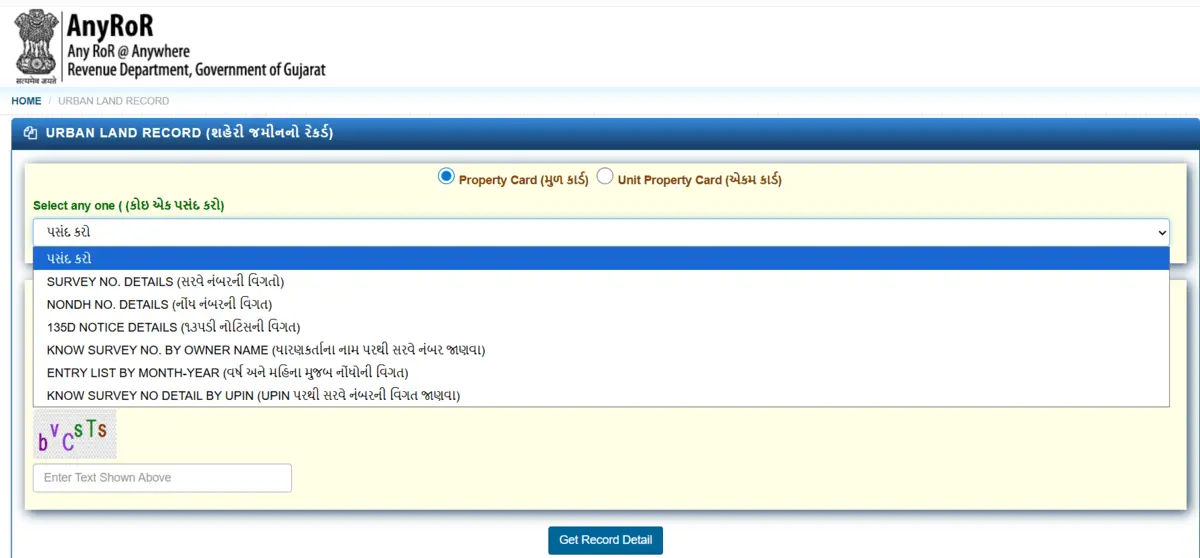
The following land records are available in Urban Land Records
- Survey No. Details (સર્વે નંબરની વિગત)
- Nondh No. Details (નોંધ નંબરની વિગત)
- 135D Notice Details (૧૩૫ડી નોટિસની વિગત)
- Know Survey No. by Owner Name (માલિકના નામ પરથી સર્વે નંબર જાણવા)
- Entry List by Month-Year (વર્ષ અને મહિના મુજબ નોંધણીની વિગત)
- Know Survey No Detail by UPIN (UPIN પરથી સર્વે નંબરની વિગત જાણવા)
Navigate to Homepage > Access Land Record – Urban

STEP 1 — Enter Urban Property Details (શહેરી મિલકતની વિગતો દાખલ કરો)
Initially, you need to click on any one option from the following two options Property Card (મુળ કાર્ડ) and Unit Property Card (એકમ કાર્ડ). Following that select which type of land record you want to access.
To proceed, you need to select the required details from the dropdown menus: District (જિલ્લો), City Survey Office (સીટી સર્વે ઓફિસ), Ward (વોર્ડ), and Nondh No. (નોંધ નંબર).
The portal will request for other details as well depending on what type of land record you require. After entering the details solve the Captcha (કેપ્ચા) and click on the Get Record Detail button.
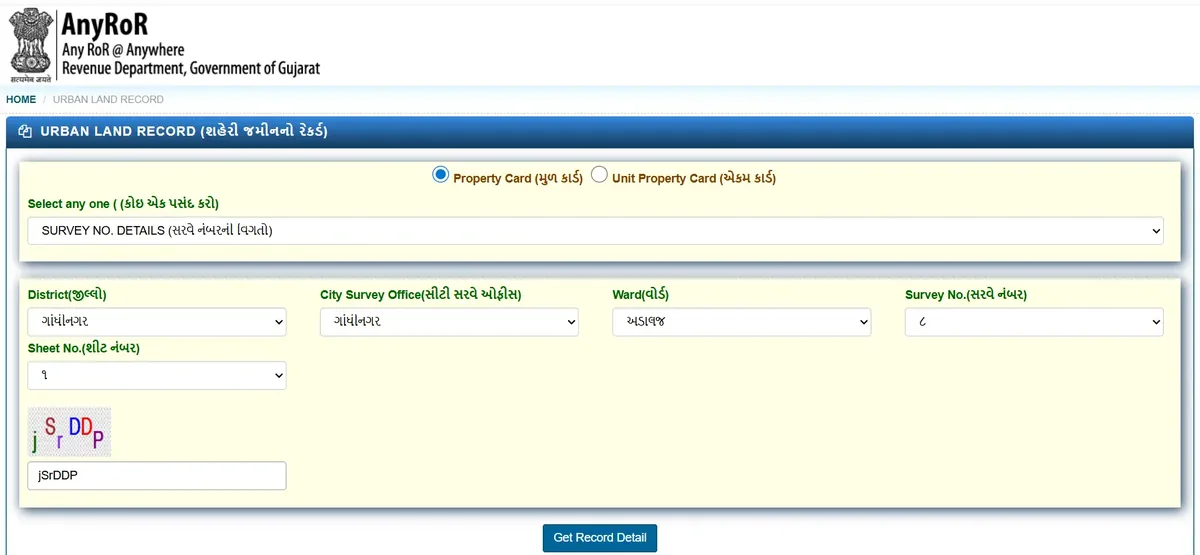
STEP 2 — Access Urban Land Record Details — Unit Property Card (એકમ કાર્ડ)
Consequently, you can see Property Card (મુળ કાર્ડ) details appear on your screen. The following details are available on the property card. Now you can verify these details before you make any property transaction.
- Property Details (મિલકતની વિગતો)
- Use of Property (મિલકતનો ઉપયોગ)
- Original Holder and Current Holder (મૂળ ધારક અને વર્તમાન ધારક)
- Property Tax Details (મિલકત કરની વિગતો)
- Sub-Registrar Deed Details (સબ-રજિસ્ટ્રાર ડીડ વિગતો)
- IRCMS Revenue Case Details (IRCMS મહેસૂલી કેસ વિગતો)
- High Court / Civil Court Details (હાઈકોર્ટ / સિવિલ કોર્ટ વિગતો)
- Jantri Details (જંત્રી વિગતો)
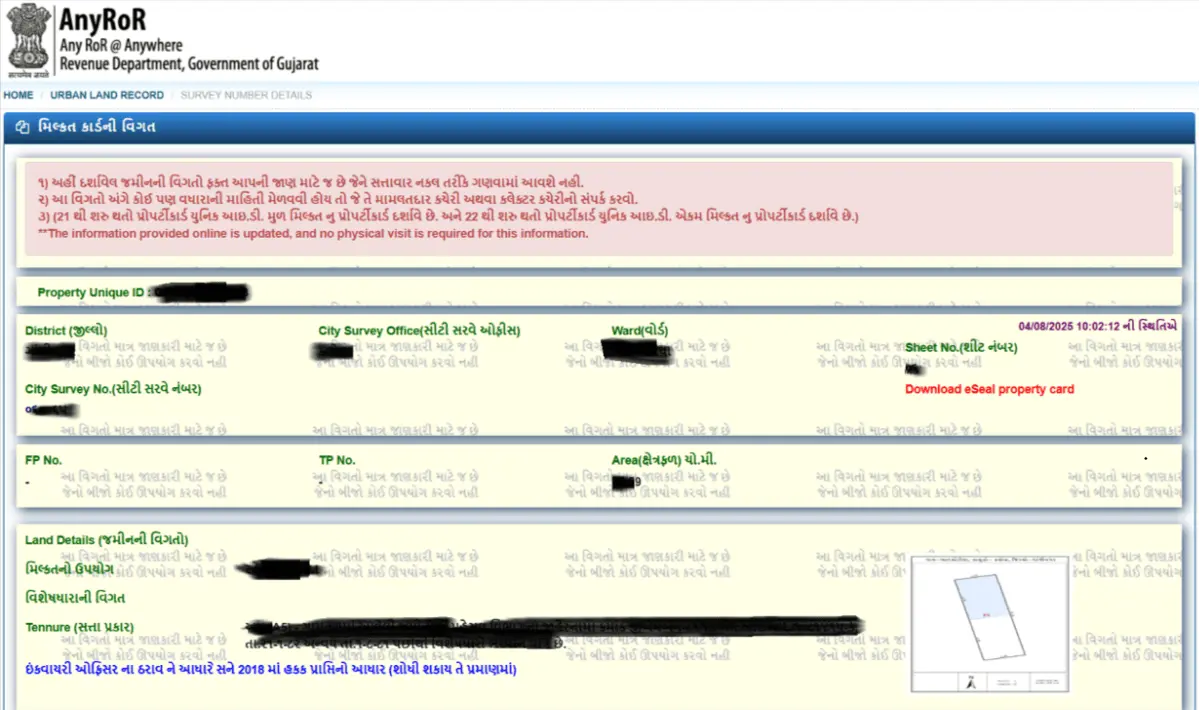
Need a complete walkthrough with screenshots, document checklist, and expert insights?
Property Search (પ્રોપર્ટી શોધ)
To access Property Search, visit https://garvi.gujarat.gov.in/ and navigate to Property Search from the main menu.
STEP 1 — Select Search Method and Enter Property Details (શોધ પદ્ધતિ પસંદ કરો)
You can search for your property using 5 different search methods. Select any one method based on the information you have about the property:
- Property Wise (પ્રોપર્ટી મુજબ)
- Name Wise (નામ મુજબ)
- Document No / Document Year (દસ્તાવેજ નંબર / દસ્તાવેજ વર્ષ)
- Date Of Registration (નોંઘણીની તારીખ)
- Download Scan Document (સ્કેન દસ્તાવેજ ડાઉનલોડ કરો)
After selecting your preferred search method, complete the CAPTCHA verification, then click Send Verification Code (વેરિફિકેશન કોડ મોકલો) to receive OTP on your mobile number.
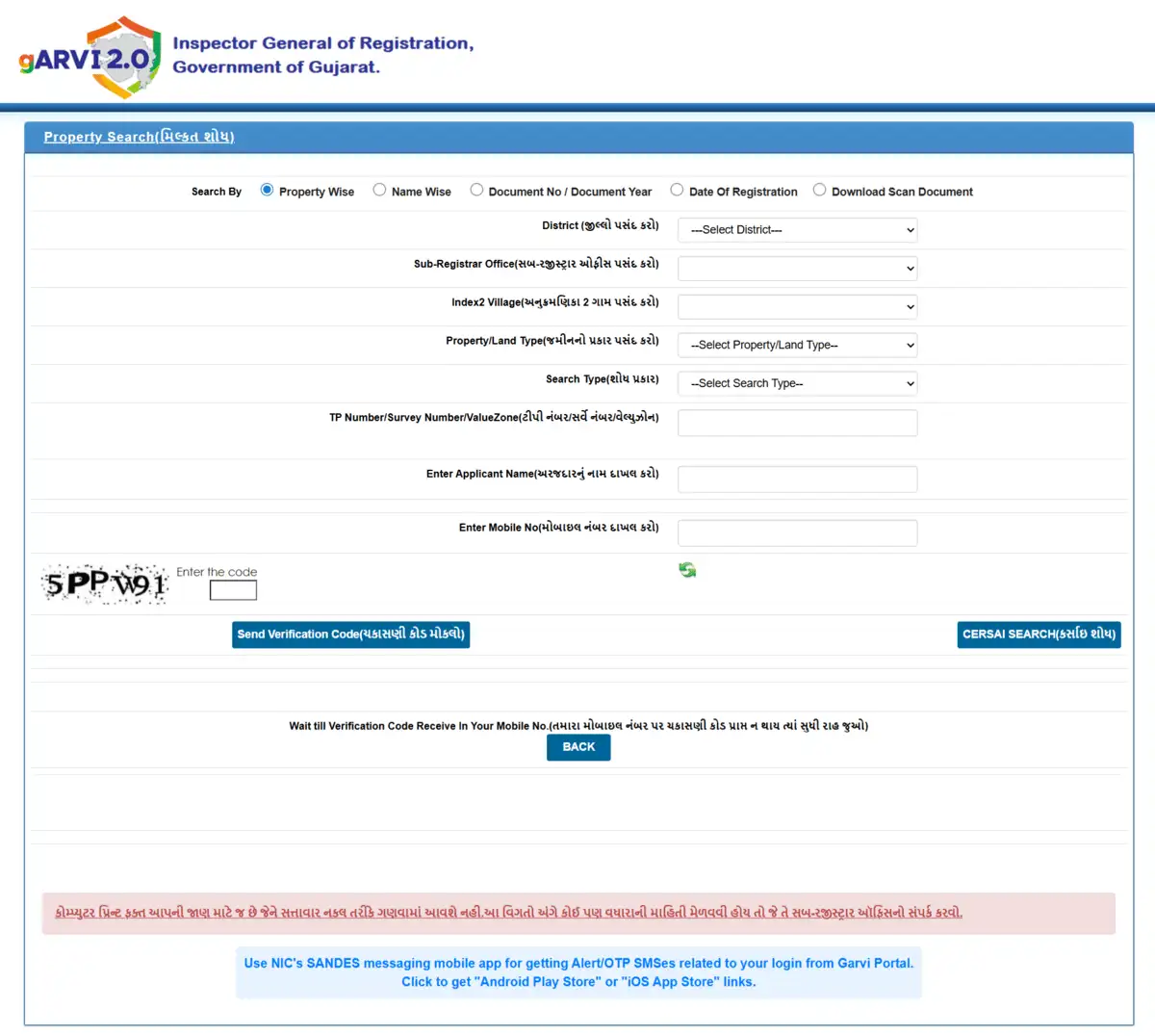
Complete the CAPTCHA verification by entering the code shown in the image, then click Send Verification Code (વેરિફિકેશન કોડ મોકલો) to receive OTP on your mobile number.
STEP 2 — Complete Verification and Search
After receiving the OTP on your mobile, enter it for verification and click CERSAI SEARCH (સર્સાઈ શોધ) to access your property details.
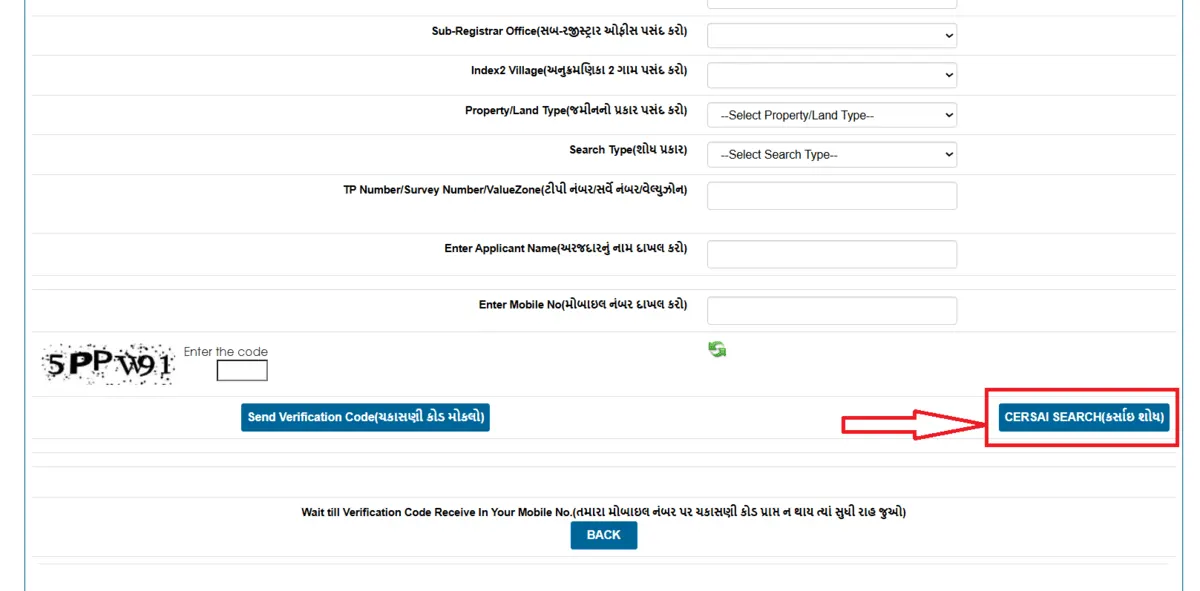
STEP 3 — Access Property Details
Once verification is complete, you will see comprehensive property details on your screen including Ownership Details (માલિકીની વિગતો), Property Details (પ્રોપર્ટીની વિગતો), and other relevant property information.
These details can be used as proof of ownership and documentation for property transactions.
Digitally Signed RoR (ડિજિટલી સાઇન્ડ સાત નમૂના નંબર)
Categories of Digital Signed RoR (ડિજિટલ સહી RoR ના પ્રકારો)

The following land records are available in Digital Signed RoR
- ગામ નમૂના નં. ७ (Village Form No. 7)
- ગામ નમૂના નં. १२ (Village Form No. 12)
- ગામ નમૂના નં. ८ એ (Village Form No. 8A)
- ગામ નમૂના નં. ६ (Village Form No. 6)
- જુના ગામ નમૂના નં. ६ (Old Village Form No. 6)
Navigate to Homepage > Digital Signed RoR
You must login using your mobile number (મોબાઇલ નંબર) in order to download Digital Signed RoR.
Once logged in, use the steps below to download RoR.
STEP 1 — Choose Record and Location (રેકોર્ડ અને સ્થાન પસંદ કરો)
You must initially select the land record that you require, then decide where your property is situated. Select the Record Type (રેકોર્ડનો પ્રકાર) from the dropdown (કોઈ એક વિકલ્પ પસંદ કરો).
Next, fill in the following location details:
- District Name (જિલ્લાનું નામ) — Select from dropdown
- Taluka Name (તાલુકાનું નામ) — Select your Taluka
- Village Name (ગામનું નામ) — Choose your village from the list
- Survey / Block Number (સર્વે / બ્લોક નંબર) — Enter the required number
After selecting all details, click the Add Village Form button to proceed.
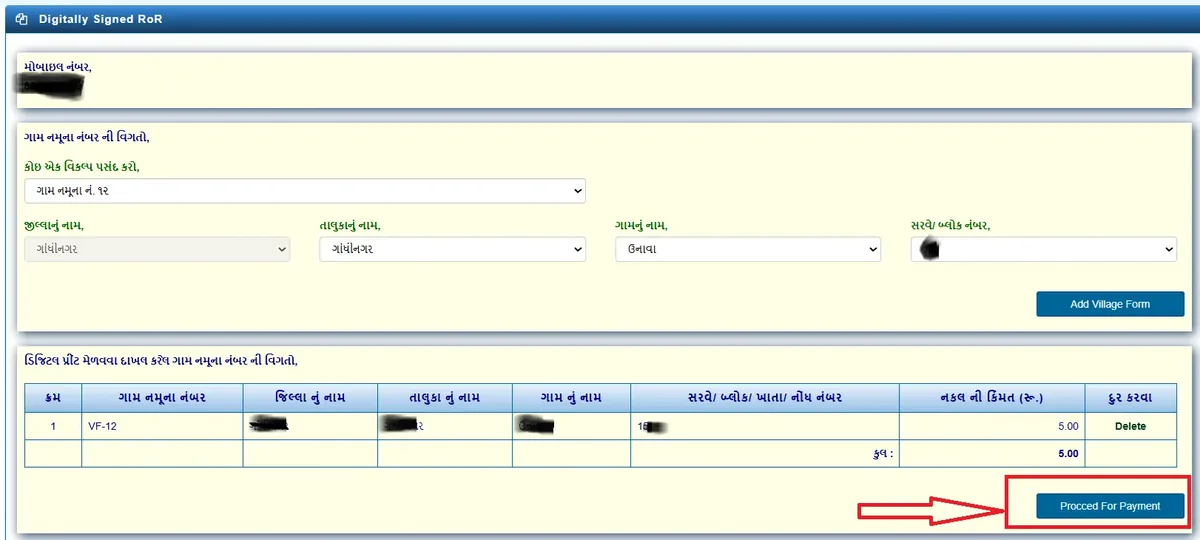
Finally, press the Proceed for Payment (ચુકવણી માટે આગળ વધો) button.
STEP 2 — Download Digital Signed RoR
You can download your digitally signed RoR after making the required payment (આવશ્યક ચુકવણી).
Since it includes a digital signature (ડિજિટલ સહી), this RoR can be used for official purposes such as bank loans, court submissions, and government applications.
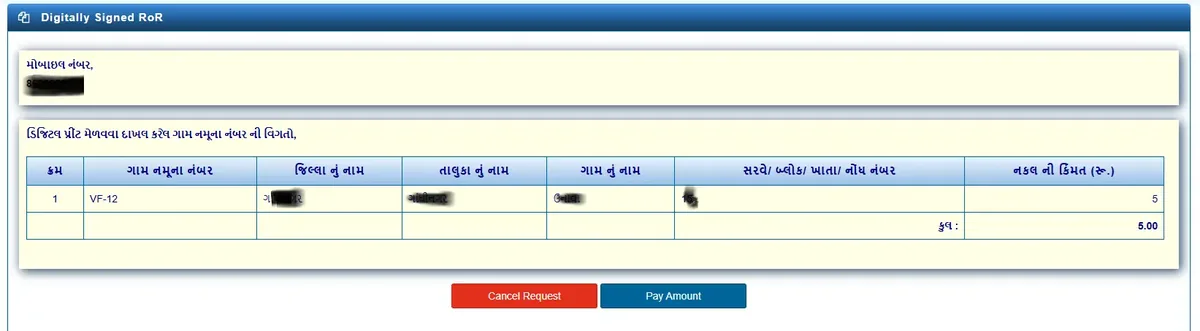
Digitally Signed RoR – https://iora.gujarat.gov.in/ror_online.aspx
Fees and Charges (ફી અને ચુકવણી)
- Only ₹5 per copy of Digitally Signed RoR
- Payment made online through the portal
- Secure payment gateway integration
- Fees calculated automatically by property type
- Click "Calculate Fee" to know exact charges
- Different fees for Property Card and Unit Property Card
- Most viewing services are free of cost
- Online land record viewing (information purposes)
- Property search and verification
E-Dhara Centers and Offline Services (ઇ-ધારા કેન્દ્રો)
- E-Dhara Centers available in every Taluka of Gujarat
- Visit for registration, updates, property splits, and mutations
- Complete mutation application processing available
- In-person assistance for digital services
- Talati-cum-Mantri assistance at revenue offices
- Jan Seva Kendra at Mamlatdar offices
- Help for users facing technical difficulties
Additional Services and Features
E-Chavadi Services (ઇ-ચાવડી સેવાઓ)
The E-Chavadi feature allows you to check monthly updates and changes in all land records of a village. This service helps track property modifications and mutations within your area.
To access E-Chavadi:
- Navigate to Homepage > E-Chavadi (ઇ-ચાવડી)
- Select District (જિલ્લો), Taluka (તાલુકો), Village (ગામ)
- Choose Year (વર્ષ) and Month (મહિનો) for records
- Solve Captcha and click Get Record Detail
Mobile App Access (મોબાઇલ એપ્લિકેશન)
For convenient access to land records on mobile devices, several third-party apps are available on Google Play Store and Apple App Store. These apps allow you to:
- View rural and urban land records on mobile
- Save land records in image format
- Share records through various apps
- Access records offline after downloading
Visit Un-official Anyror Mobile App
Multiple Language Support (બહુભાષી સપોર્ટ)
The AnyRoR portal supports Gujarati, Hindi, and English languages, making it accessible to users from different linguistic backgrounds.
24/7 Availability (૨૪/૭ ઉપલબ્ધતા)
With 24/7 availability and mobile accessibility, AnyRoR ensures that users can access records from anywhere, at any time. This is particularly beneficial for rural residents and non-resident Gujaratis.